Markdown Preview
Type Markdown on the left, see formatted output on the right.
- No training on your data
- Region: global

Markdown Preview
Writing & Communication Studio
Markdown Preview — Overview
What is Markdown Preview?
Markdown Preview is a simple, non-AI utility that allows users to write Markdown syntax and instantly see the formatted output in real time. It provides a dual-pane interface where the left side is used for writing raw Markdown, and the right side displays the rendered version of that content as it would appear in a final document.
This tool is particularly useful for developers, technical writers, and content creators who frequently work with Markdown in environments such as README files, documentation, blog posts, or knowledge bases. By offering a live preview, it removes the need to switch between editors, manually render content, or rely on guesswork when formatting text.
The interface is clean and intuitive. On the left, users can write Markdown elements such as headings, lists, code blocks, links, and emphasis. On the right, the tool renders the corresponding HTML-like formatting instantly, allowing users to verify structure, spacing, and styling without additional steps.
What does Markdown Preview do?
Markdown Preview converts Markdown text into a formatted preview in real time. It enables users to validate formatting, structure, and layout before publishing or sharing content.
- Displays formatted output instantly as you type
- Shows raw syntax and rendered content simultaneously
- :
- Headings (`#`, `##`, etc.)
- Bold and italic text
- Inline code and code blocks
- Lists (ordered and unordered)
- Links and URLs
How to use Markdown Preview
- 1Write Markdown in the Left Panel
Start typing Markdown syntax in the input area on the left. You can include: - Headings using `#` - Lists using `-` or `*` - Inline code using backticks (\`) - Links using `[text](url)`
- 2View the Live Preview
As you type, the right panel automatically displays the formatted version of your content. This happens instantly without requiring any manual action.
- 3Adjust Formatting
If something does not look right, you can modify the Markdown syntax in the left panel and immediately see the updated result on the right.
- 4Validate Structure and Layout
Use the preview to confirm: - Proper heading hierarchy - Correct spacing and alignment - Readability and formatting consistency
- 5Copy and Use the Content
Once satisfied, copy your Markdown text or use the previewed structure in your target application, such as: - GitHub README files - Documentation platforms - Blogs and CMS tools - Internal knowledge bases
Privacy & cost
This tool runs entirely in your browser. Nothing is uploaded, logged, or saved on our servers — safe for confidential or proprietary data.
Where it fits
Developers and teams can write and preview README files for repositories, ensuring consistent formatting before publishing.
Writers can draft guides, tutorials, and documentation while verifying how content will render in Markdown-supported platforms.
Bloggers using Markdown-based platforms can format posts and ensure headings, lists, and links appear correctly.
Developers can test how code snippets and formatted text will look in documentation systems.
You might also like
More in Writing & Communication Studio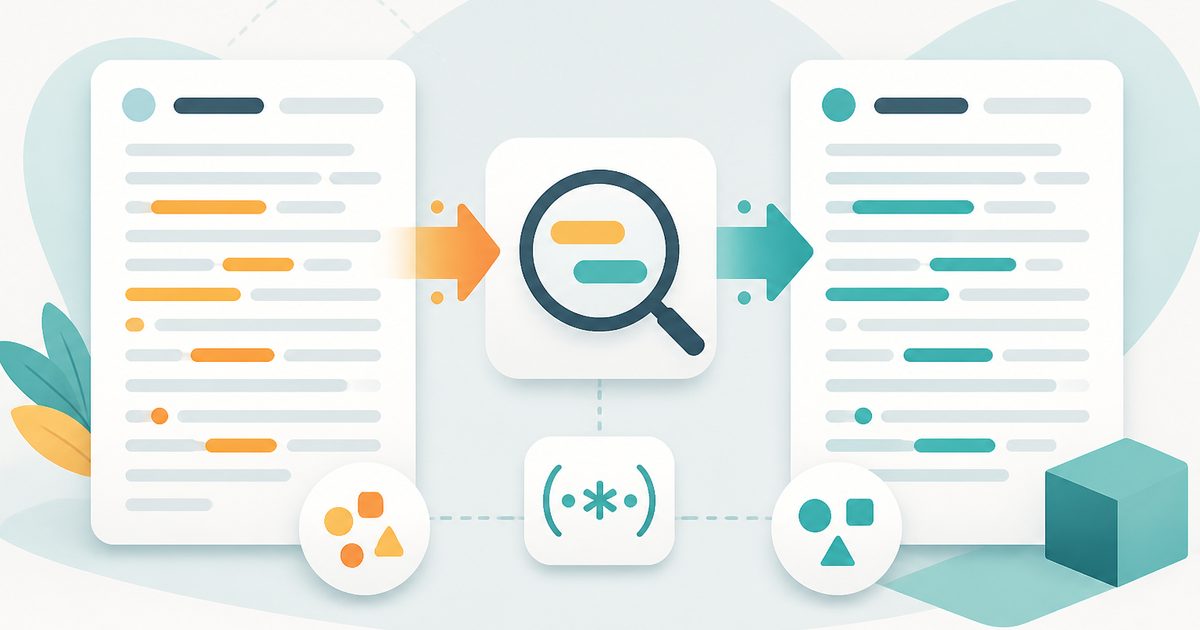
Find & Replace
Writing & Communication Studio
Bulk find and replace, with regex support.

Text Diff
Writing & Communication Studio
Compare two blocks of text line by line.

AI Grammar Fixer
Writing & Communication Studio
Polish grammar, clarity and style instantly.
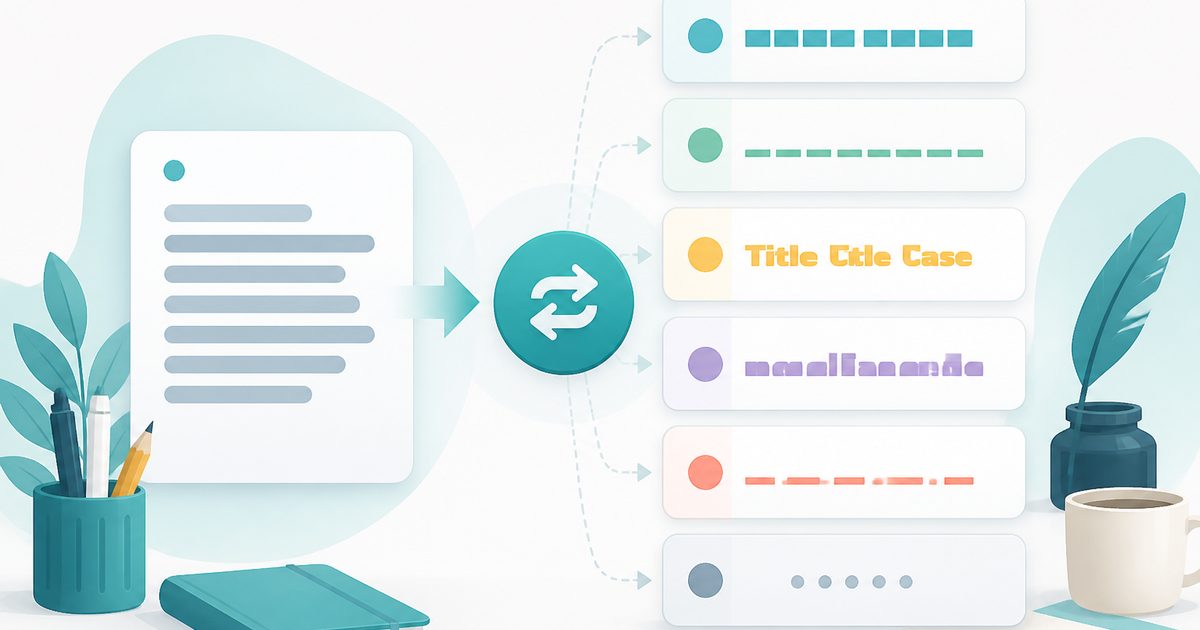
Case Converter
Writing & Communication Studio
UPPER, lower, Title, camelCase, snake_case and more.

Lorem Ipsum
Writing & Communication Studio
Generate placeholder paragraphs, sentences or words.
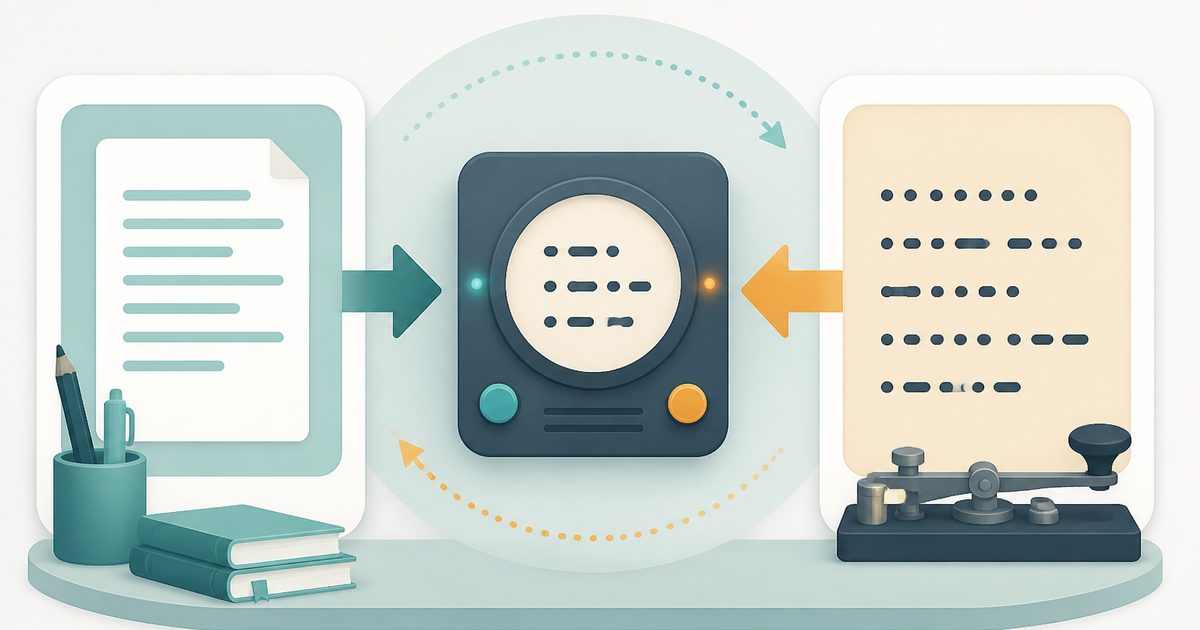
Morse Code Translator
Writing & Communication Studio
Translate text to Morse code and back.