
HEIC to JPG Converter
iPhone photos in HEIC won't open on many PCs and websites. Convert them to JPG right in your browser — your photos never leave your device.
- No training on your data
- Region: global

HEIC to JPG Converter
Design & Creative Assets
HEIC to JPG — Overview
What is HEIC to JPG?
HEIC to JPG converts the photos your iPhone takes into JPGs that work everywhere. Since iOS 11, Apple devices save pictures as HEIC (High Efficiency Image File Format) — roughly half the size of a JPG at the same quality, which is excellent for your phone's storage and awkward for absolutely everything else.
Windows without the paid codec pack, older Android phones, most web upload forms, print services, insurance portals and countless business systems simply cannot read a .heic file. The photograph is perfectly fine; the container is the problem.
This converter decodes HEIC and HEIF files locally — the decoding happens in your browser tab, not on a server — and hands back standard JPGs. That matters more here than for most conversions: phone photos are personal, and the mainstream HEIC converters all require you to upload them.
What does HEIC to JPG do?
iPhone photos, made universal:
- Decode both .heic and .heif files entirely on your device
- Batch convert up to 20 photos per pass with live progress
- Quality slider so you choose size versus fidelity
- Standard JPG output that opens on Windows, Android and every upload form
- Per-file error reporting so one bad photo doesn't stop the batch
- No upload, no sign-up, no watermark, no photo retained anywhere
How to use HEIC to JPG
- 1Add your HEIC photos
Drop them from your phone's exported folder, or AirDrop them to your computer first and add them here.
- 2Set the quality
90% for photos you plan to print or keep; 75% is plenty for messaging and web forms and cuts the size substantially.
- 3Download the JPGs
Each converted photo can be saved individually — they'll now open in Windows Photos, Android galleries and any website.
Privacy & cost
This tool runs entirely in your browser. Nothing is uploaded, logged, or saved on our servers — safe for confidential or proprietary data.
Where it fits
The recipient opens the JPGs immediately instead of asking what a .heic is.
Government, insurance and banking forms almost never accept HEIC.
Photo labs and print-on-demand services require JPG.
Many desktop editors still have no HEIC support at all.
Why people pick this tool
- ✓Free forever — no photo caps, watermarks or sign-ups
- ✓100% in-browser decoding — your personal photos never touch a server
- ✓Batch mode with per-file progress and error handling
- ✓Handles both HEIC and HEIF variants
- ✓No queue, no email-me-the-link, no ads on your download
FAQs
The bottom line
Every popular HEIC converter asks you to upload your camera roll to a stranger's server. There is no technical reason for that — the decoding works perfectly well in your own browser, which is exactly what happens here.
More image converters
Every converter below runs entirely in your browser — your photos never leave your device.
- Convert JPG to PNG online free
- Convert PNG to JPG without losing quality
- JPG to WebP converter
- WebP to PNG converter
- WebP to JPG converter
- AVIF to JPG converter
- Batch image format converter
- Compress images without losing quality
- Resize images online
- Remove image background free, no signup
- Extract text from an image (OCR)
- JPG to text converter
- Copy text from a screenshot
You might also like
More in Design & Creative Assets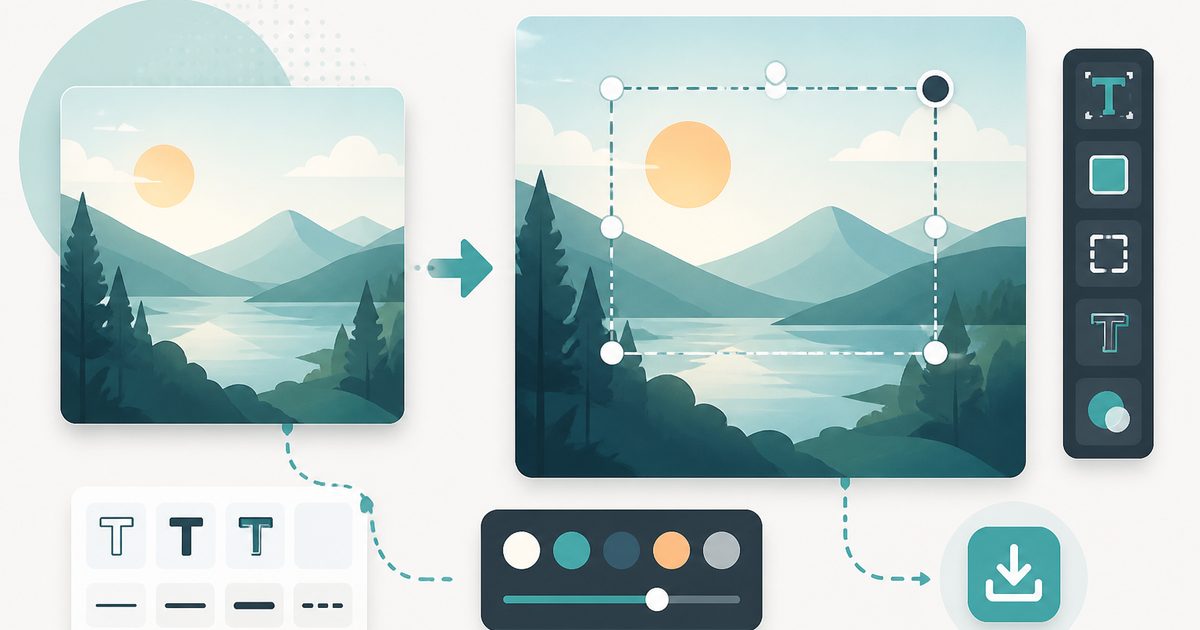
Add Text to Image
Design & Creative Assets
Overlay custom text on any image — fonts, stroke, drag to position, download.
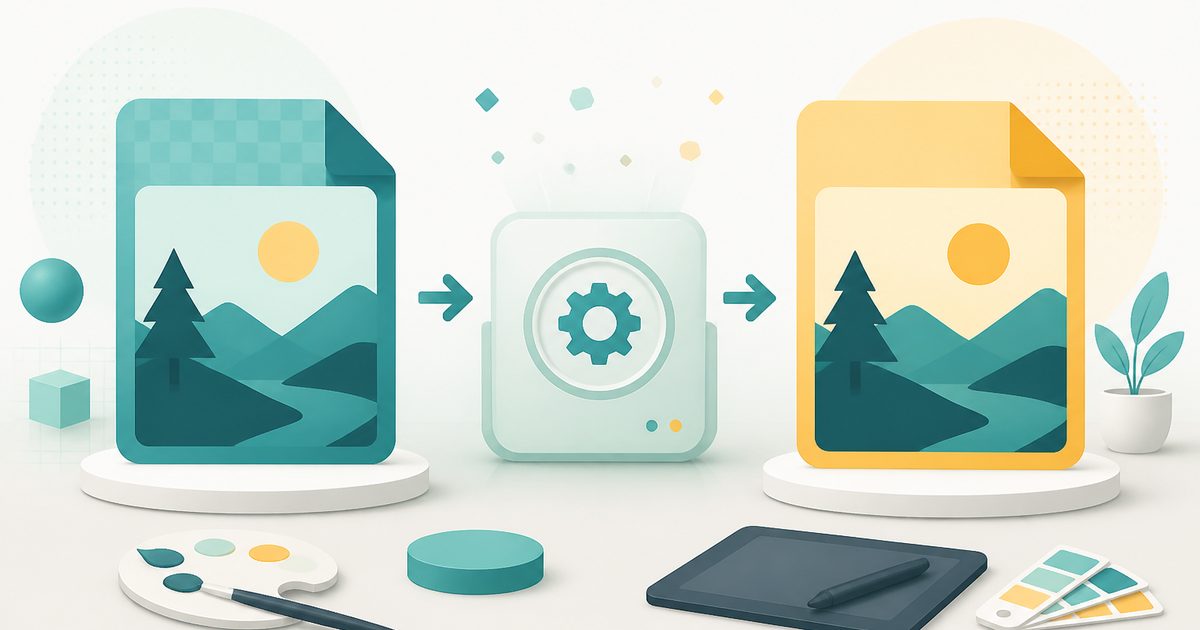
AVIF to JPG
Design & Creative Assets
Convert AVIF images to JPG so older apps and editors can open them.

Background Remover
Design & Creative Assets
Erase photo backgrounds on-device and download a transparent PNG.
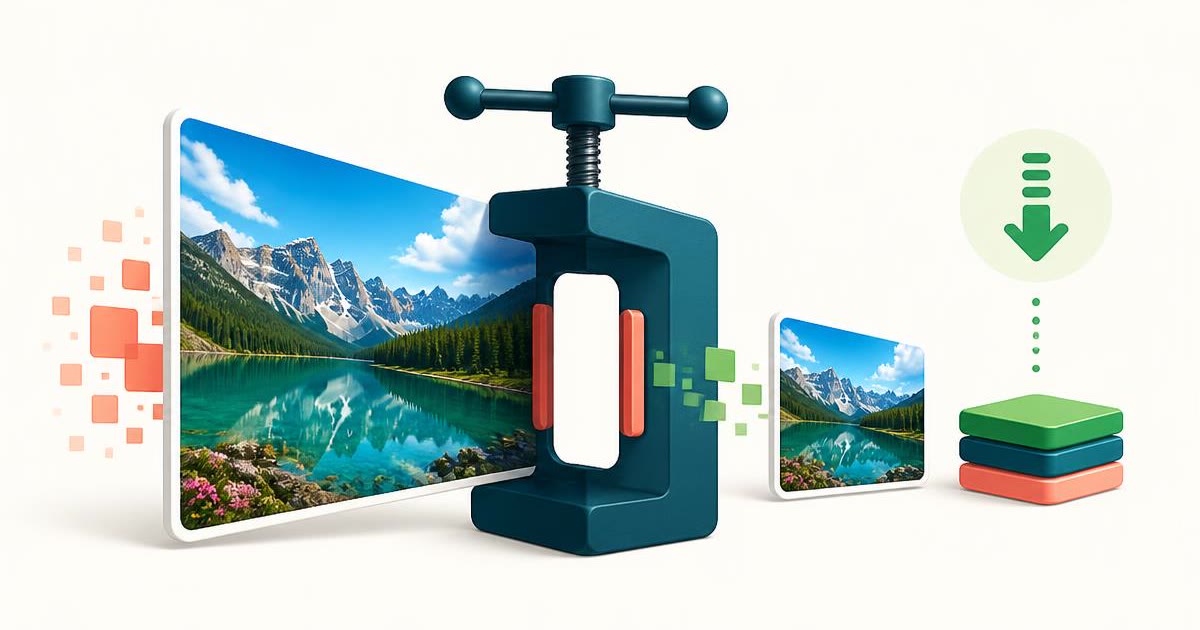
Image Compressor
Design & Creative Assets
Shrink JPEGs without uploading anywhere.
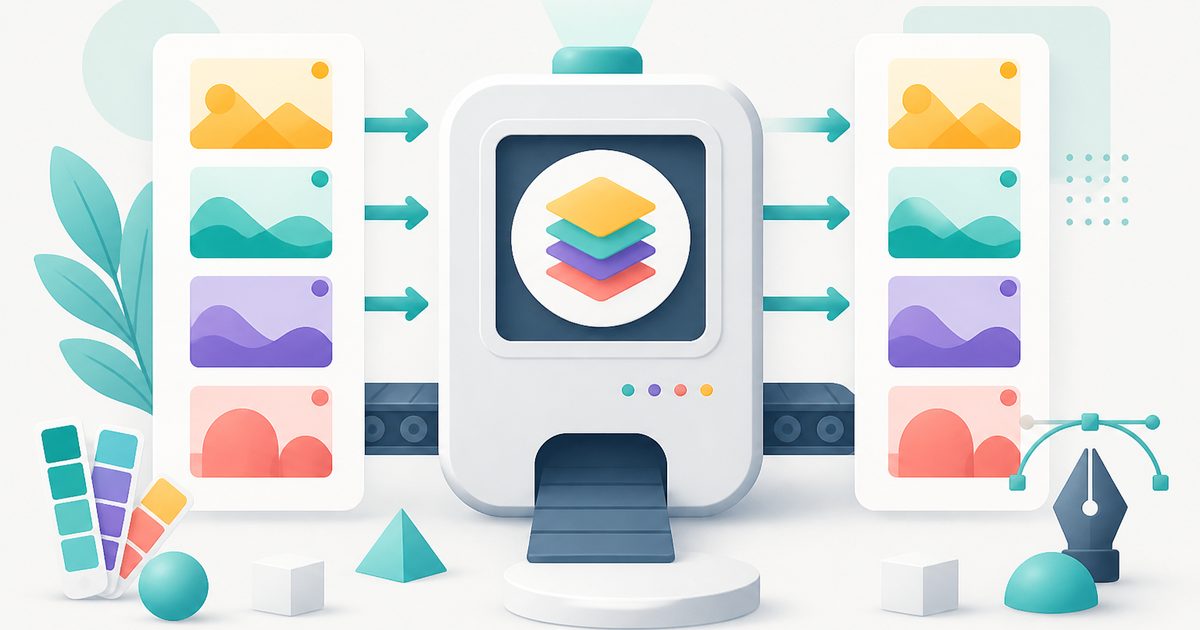
Image Converter
Design & Creative Assets
Convert between JPG, PNG, WebP and AVIF in batches.
Image Resizer
Design & Creative Assets
Resize images privately in your browser.