PNG to JPG Converter
Turn PNG screenshots and exports into small, email-friendly JPGs — with control over the background behind transparency.
- No training on your data
- Region: global
PNG to JPG Converter
Design & Creative Assets
Drop images here, or click to browse
Up to 40 files · converted on your device, never uploaded
80–90% is the sweet spot: visually identical, much smaller.
The converter searches for the highest quality near your target instead of guessing a fixed quality.
Metadata removed automatically. Rebuilding the image in your browser strips EXIF location, camera, and author details from the download.
Images are only ever scaled down unless you pick a scale above 100%.
JPG has no transparency. Transparent areas are filled with this colour instead of turning black.
PNG to JPG — Overview
What is PNG to JPG?
PNG to JPG converts PNG images into compact JPG files entirely inside your browser. PNG is a wonderful format for screenshots, logos and anything needing transparency, but it is a poor fit for photographs: a PNG photo is routinely five to ten times larger than the same picture as a JPG at indistinguishable quality.
That size difference is why so many upload forms, e-mail systems and job portals reject PNGs. Converting to JPG usually takes a multi-megabyte file down to a few hundred kilobytes without any visible change.
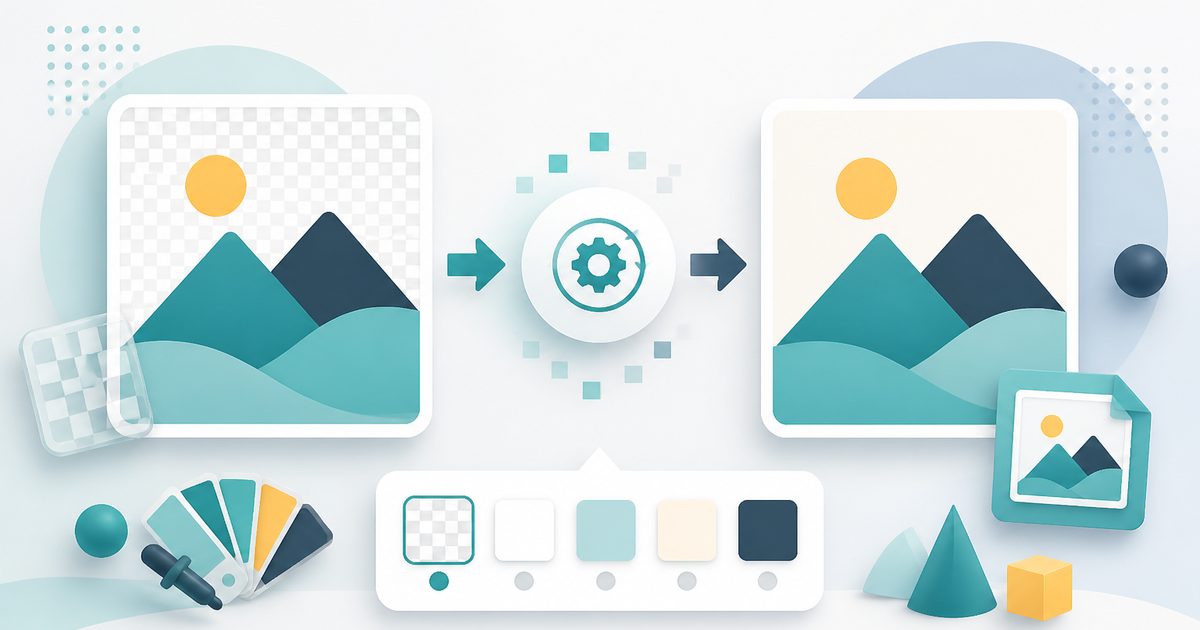
There is one real catch, and this tool handles it properly: JPG has no transparency channel. Naive converters render transparent areas as black. Here you choose the background colour explicitly — white by default — so logos and screenshots with rounded corners come out looking exactly as intended.
What does PNG to JPG do?
A conversion that respects what PNG was doing:
- Batch convert up to 40 PNGs in one pass
- Quality slider so you decide the size-versus-fidelity balance
- Pick any background colour to sit behind transparent pixels
- Optional resize to cap dimensions at the same time
- Before-and-after size totals, so you can see the saving
- Nothing uploaded — safe for screenshots containing private information
How to use PNG to JPG
- 1Drop your PNG files
Add one or a whole folder. Only PNG files are accepted so you can't convert the wrong thing by accident.
- 2Set quality and background
Leave quality at 82% for a big saving with no visible loss. If your PNGs have transparency, choose the background colour that matches where the image will be used.
- 3Download your JPGs
Save them one by one, or take the whole batch as a zip.
Privacy & cost
This tool runs entirely in your browser. Nothing is uploaded, logged, or saved on our servers — safe for confidential or proprietary data.
Where it fits
A full-screen PNG screenshot is often 3–6MB. As a JPG it's usually under 400KB — inside every attachment limit.
Portals that cap uploads at 1 or 2MB frequently reject PNGs that convert to JPG comfortably under the limit.
Many print and photo services accept JPG only.
JPG for photographs and anything you e-mail. PNG when you need transparency or perfectly sharp screenshots and diagrams. WebP when you control a website and want the smallest files. AVIF for the very smallest files, when you know your audience uses recent browsers.
Why people pick this tool
- ✓Free forever — no file caps, watermarks, sign-ups or premium tier
- ✓100% in-browser conversion — your images never touch a server
- ✓Batch mode: convert up to 40 images in one pass and download a single .zip
- ✓Works offline once the page has loaded
- ✓No queues, no e-mail-me-the-link, no ads stapled to your download
FAQs
The bottom line
PNG to JPG is the single most common image conversion there is, which is exactly why so many sites will happily take your screenshot, upload it, and put a watermark on the way out. This one runs on your machine and asks for nothing.
More image converters
Every converter below runs entirely in your browser — your photos never leave your device.
- Convert JPG to PNG online free
- JPG to WebP converter
- WebP to PNG converter
- WebP to JPG converter
- AVIF to JPG converter
- HEIC to JPG converter for iPhone photos
- Batch image format converter
- Compress images without losing quality
- Resize images online
- Remove image background free, no signup
- Extract text from an image (OCR)
- JPG to text converter
- Copy text from a screenshot
You might also like
More in Design & Creative Assets
Add Text to Image
Design & Creative Assets
Overlay custom text on any image — fonts, stroke, drag to position, download.
AVIF to JPG
Design & Creative Assets
Convert AVIF images to JPG so older apps and editors can open them.
Background Remover
Design & Creative Assets
Erase photo backgrounds on-device and download a transparent PNG.
HEIC to JPG
Design & Creative Assets
Convert iPhone HEIC photos to JPG on-device — batch up to 20.
Image Compressor
Design & Creative Assets
Shrink JPEGs without uploading anywhere.
Image Converter
Design & Creative Assets
Convert between JPG, PNG, WebP and AVIF in batches.