The 2026 Social Media Asset Playbook: Trim, Crop and Compress for Reach
Why your uploads look blurry, which shape each platform really wants, how to hit a file-size budget on purpose, and how to strip location data before you post.
On this page
Updated September 28, 2026 — a practical guide to getting video and images out of your editor and onto the feed without losing quality.
You export a video you are happy with. You upload it. It comes back soft, slightly grey, and cropped through someone's forehead. Then you do the same job again for a second platform, at a different shape, and the whole afternoon is gone.
This is not a talent problem. It is an export problem, and it has a fixed set of causes. Here is what actually matters in 2026, and the fastest way to deal with each.
Start with the file you have: trim a video, compress a video, convert an image, or remove a background. Your files stay on your device.
The shape problem comes first
Every platform crops to what it wants. If you deliver the wrong shape, the platform decides what to cut — and it cuts badly.
| Where it's going | Shape | What to watch |
|---|---|---|
| Reels, TikTok, Shorts | 9:16 vertical | Keep captions and faces away from the bottom third — the interface sits there |
| Feed posts | 1:1 or 4:5 | 4:5 takes up more screen; 1:1 is safer when the same file goes everywhere |
| YouTube, landing pages | 16:9 | The only place where wide still wins |
| Stories | 9:16 | Top and bottom are covered by profile chrome and reply bars |
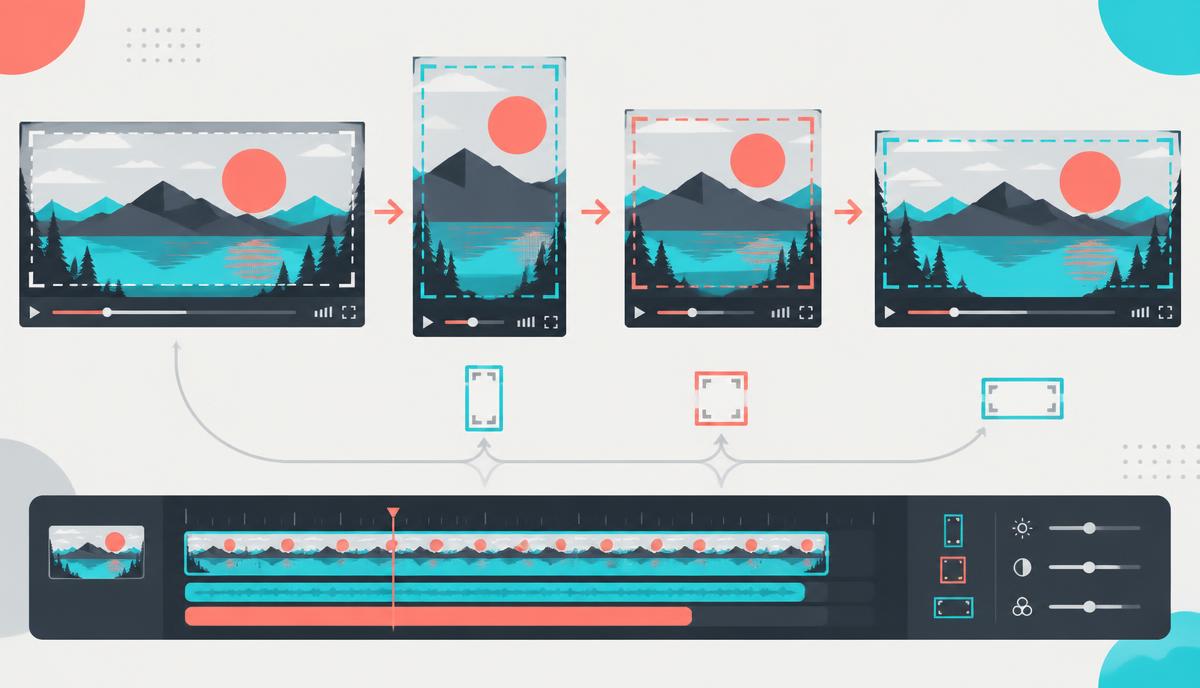
The mistake is re-editing for each shape. You do not need to. Take the finished cut and reframe it: the Video Trimmer has one-tap 9:16, 1:1 and 16:9 presets, so the same master becomes three platform-ready files. You drag the timeline to pick your start and end, choose the shape, and export. Original dimensions stay untouched by default, so nothing is cropped unless you ask.
A note on trimming: cut your opening tighter than feels comfortable. On a vertical feed, the first second decides whether anyone sees the second one. The visual timeline makes it easy to shave the dead half-second before someone starts speaking — that half-second is genuinely costing you views.
Why your uploads look blurry
Here is the part that surprises people: uploading a bigger file often produces a worse result.
Every platform re-encodes what you send to fit its own bandwidth budget. Hand it a 300 MB 4K export and its automated pass will squeeze that down aggressively, with no interest in which parts of your frame matter. Hand it a file that is already close to the target size and encoded sensibly, and there is far less for the platform to throw away.
Two tools do this job:
- The Video Compressor brings oversized exports down before upload, which also fixes the "file too large" wall you hit on uploads and email.
- For stills, the Image Converter has a smart compression target — you name a budget, say 500 KB per image, and it works out the quality setting that lands there. That is much more reliable than nudging a quality slider and re-exporting four times. If you only need size reduction without changing format, the Image Compressor is the more direct route.
Practical targets that hold up well: feed images under 500 KB, hero and cover images under 300 KB, and short vertical video under 30 MB. Below those, the platform mostly leaves you alone.
Format choices, decided once
- WebP for anything on your own site. Roughly 25–35% smaller than JPEG at the same visual quality, and universally supported now — JPG to WebP handles the batch.
- JPEG for anything you upload to a social platform, because some still re-encode WebP unpredictably. WebP to JPG covers the reverse trip.
- PNG only for logos, screenshots with text, and anything needing transparency. Using PNG for photos is the most common reason a "small" image is 4 MB. PNG to JPG fixes that in seconds.
- HEIC straight off an iPhone will be rejected by half the tools you use. Convert it up front with HEIC to JPG.
Strip the metadata before you post
A photo from your phone can carry the exact coordinates where it was taken, the device, and the timestamp. For a product shot taken at your kitchen table, that is your home address travelling with a public post.
Converting an image through the Image Converter rewrites the pixels and drops that embedded data along the way — the tool says so on the page. It is a five-second habit that removes a genuine privacy risk, and it matters most for exactly the accounts that feel too small to be a target.
Small wins that pay for themselves
- Email and newsletter teasers. A short looping clip converted with Video to GIF plays in an inbox where an embedded video will not. Keep it under three seconds and under 2 MB.
- Thumbnail research. Before designing your own, look at what is working in your niche. The YouTube Thumbnail Downloader pulls the full-resolution image from any public video so you can study composition and text placement properly.
- Text on images. Captions burned into the image survive being screenshotted and reshared, unlike platform caption layers. Add Text to Image is quicker than opening a design app.
- Clean product cutouts. The Background Remover runs on your own device, which means you can do a batch of product shots without a subscription or an upload queue.
- Audio for podcast clips. Audio Converter gets voice tracks into the format your editor or host actually accepts.
The 15-minute export routine
- Finish one master edit at the highest quality your editor offers.
- Reframe it into each shape you need with the Video Trimmer — vertical first, since that is where the reach is.
- Bring the file size down with the Video Compressor before uploading.
- Export stills, then hit a size budget with the Image Converter.
- Pull one three-second loop as a GIF for email (Video to GIF).
- Upload. Do not re-export because the preview looked slightly soft — check the live post first.
All of this runs inside your browser. Your unreleased campaign footage never leaves your machine, which is worth more than it sounds when the alternative is uploading a client's unreleased product video to a free web service.
Frequently asked questions
What size should social video be in 2026?
9:16 for Reels, TikTok and Shorts; 1:1 or 4:5 for feed posts; 16:9 for YouTube and websites. Deliver the right shape rather than letting the platform crop for you.
Why do my videos look blurry after uploading?
The platform re-encodes your file to fit its bandwidth budget. Very large files get squeezed hardest. Compressing to a sensible size before upload usually looks better than uploading the maximum-quality export.
Is WebP or JPEG better for social media?
WebP for your own website, JPEG for uploads to social platforms, since some re-encode WebP inconsistently.
How do I remove location data from a photo before posting?
Convert it before uploading. Running an image through the Image Converter rewrites the file and leaves the embedded camera and location data behind.
How do I make a GIF from a video for email?
Trim a short section, then convert it with Video to GIF. Keep it under about three seconds and 2 MB so it loads in inboxes.
Do these tools upload my files anywhere?
No. The video and image work happens on your own device inside the browser, so unreleased footage and client assets stay with you.