
Delete or Extract PDF Pages
See thumbnails of every page, tick what matters, then remove those pages or pull them into a fresh PDF.
- No training on your data
- Region: global
Delete or Extract PDF Pages
PDF & Documents
Drop a PDF to edit its pages
Click, drag or paste — page previews are rendered locally
Delete or Extract PDF Pages — Overview
What is Delete or Extract PDF Pages?
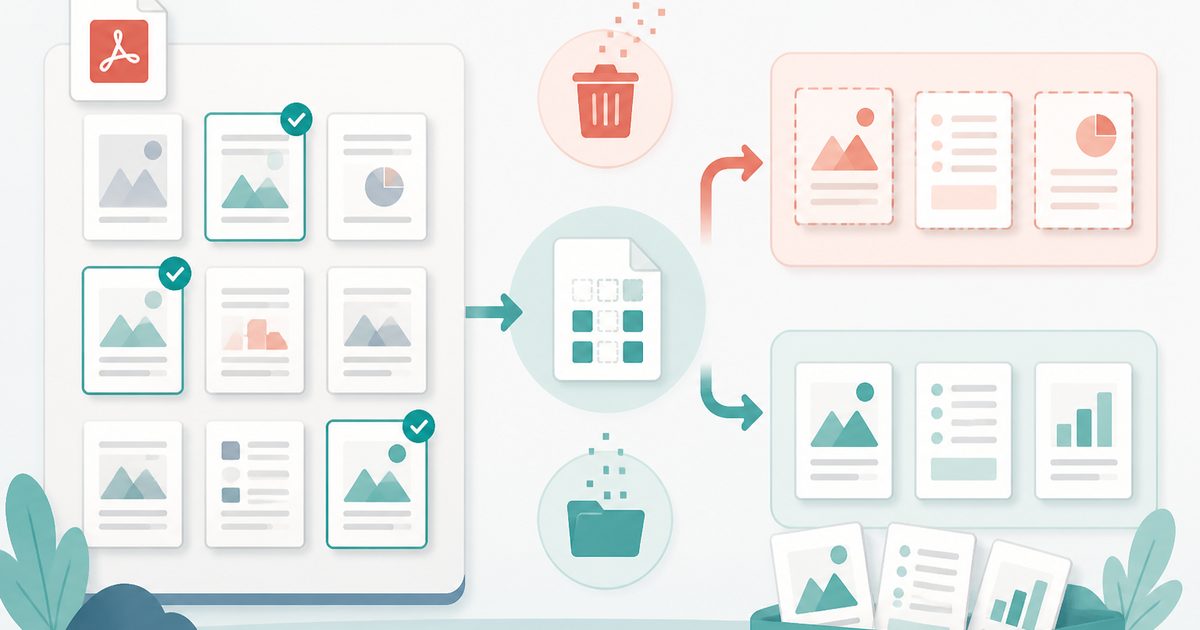
Delete or Extract PDF Pages renders every page as a thumbnail so you can see exactly what you are removing or keeping. Tick the pages you care about, then either delete them from the document or extract them into a brand-new PDF.
Visual selection matters: page numbers in a scanned bundle rarely match the printed numbering, and blank separator sheets are impossible to identify from a range box alone. Seeing the pages removes the guesswork.
Both operations are non-destructive to your original file — the source on disk is never modified, only the downloaded copy differs.
What does Delete or Extract PDF Pages do?
One selection, two opposite outcomes:
- Thumbnail grid of every page, rendered locally with the browser's PDF engine
- Click to select, plus select-all, invert and range-based selection helpers
- Delete removes the ticked pages and keeps the rest
- Extract keeps only the ticked pages and discards the rest
- Live count of how many pages the output will contain
- Original quality preserved — pages are copied, never re-rendered
How to use Delete or Extract PDF Pages
- 1Drop your PDF
Thumbnails are generated on your device. Large documents render progressively so you can start selecting immediately.
- 2Tick the pages
Click thumbnails to toggle them, or paste a range to select in bulk. Selected pages are outlined clearly.
- 3Delete or extract
Choose Delete selected to strip them out, or Extract selected to build a new PDF from just those pages.
Privacy & cost
This tool runs entirely in your browser. Nothing is uploaded, logged, or saved on our servers — safe for confidential or proprietary data.
Where it fits
Remove blank pages, cover sheets and fax confirmations that scanners insert automatically.
Extract only the pages a recipient is entitled to see, leaving confidential sections out of the file entirely.
Grab the schedules or annexes from a long agreement as their own standalone document.
Why people pick this tool
- ✓Free forever — no page caps, watermarks, sign-ups or premium tier
- ✓100% in-browser processing — your documents never touch a server
- ✓Works offline once the page has loaded, ideal for confidential files
- ✓No queues or waiting rooms — the work happens at the speed of your device
FAQs
The bottom line
Deleting and extracting are the same decision viewed from either side, which is why this tool presents them together. Seeing every page before you act is what turns a risky bulk edit into a confident one.
More ways to edit a PDF
Merge, split, compress, protect and sign PDFs privately in your browser.
You might also like
More in PDF & Documents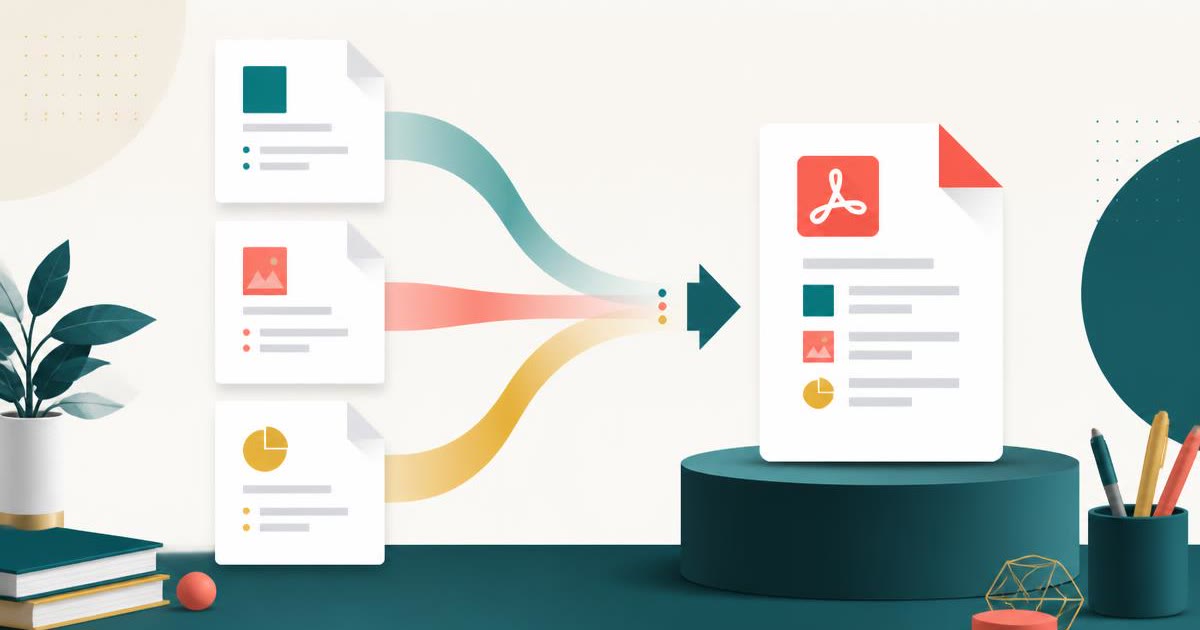
Merge PDF
PDF & Documents
Combine PDFs into one file — reorder and pick page ranges.
Rotate & Reorder PDF Pages
PDF & Documents
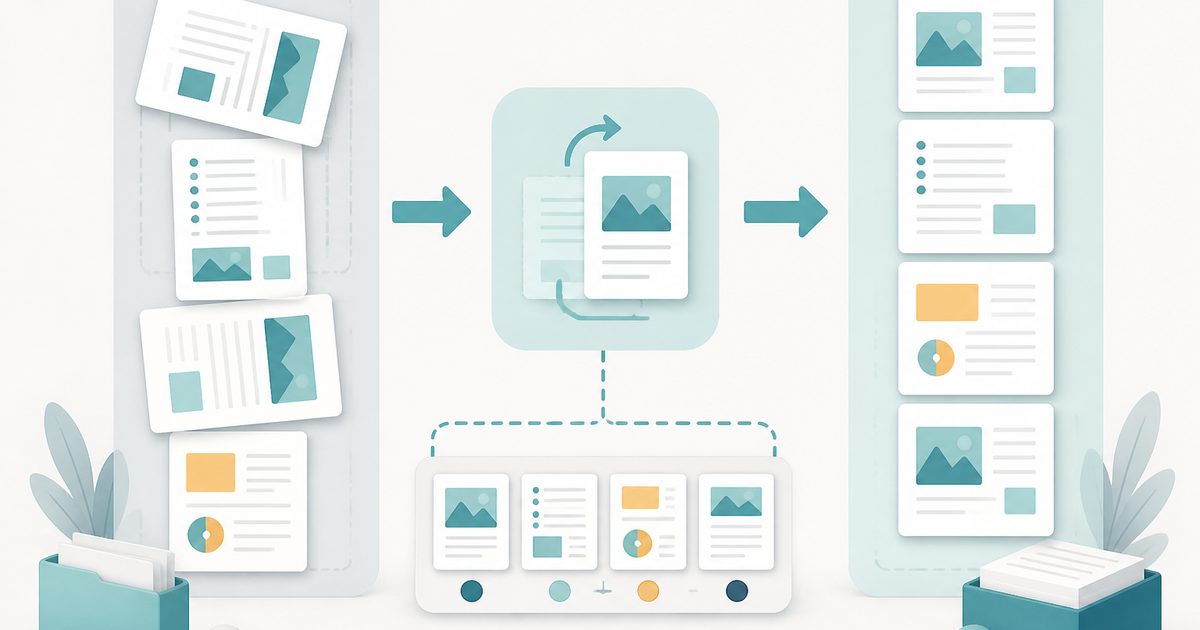
Straighten sideways scans and reshuffle pages visually.
Split PDF
PDF & Documents
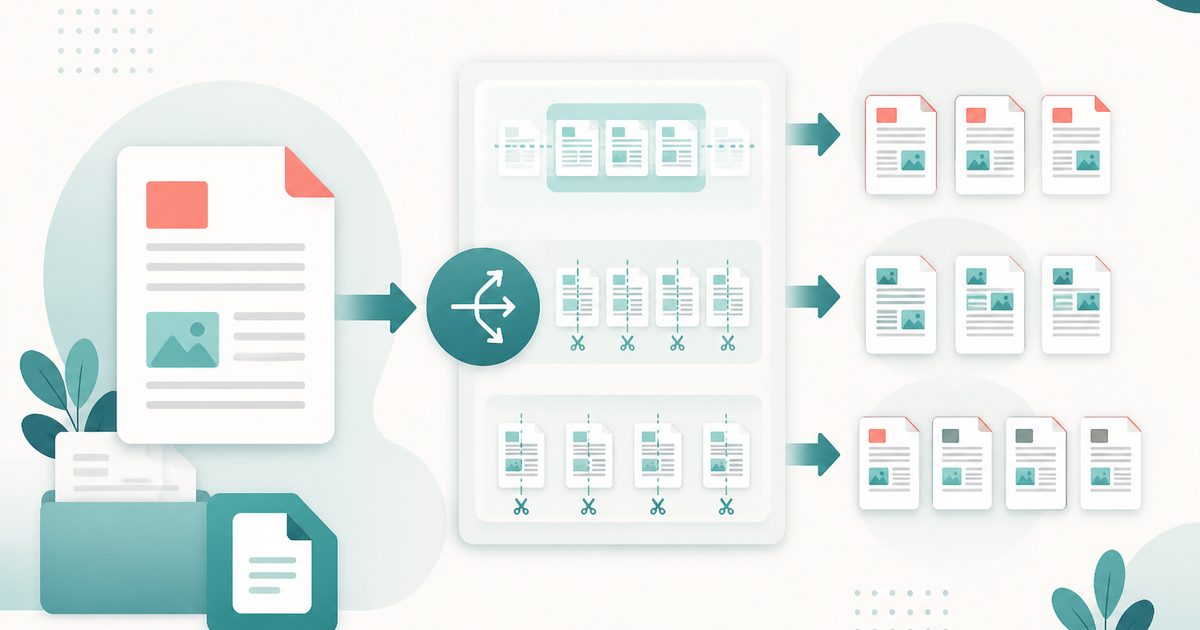
Split by ranges, every N pages, or one file per page.
Add Header & Footer to PDF
PDF & Documents
Titles, dates and page tokens along the top and bottom.
Add Page Numbers to PDF
PDF & Documents
Number pages, including legal-style Bates numbering.
Add Watermark to PDF
PDF & Documents
Stamp DRAFT or CONFIDENTIAL across any pages you choose.