PDF to Images
Turn every page of your PDFs into crisp PNG or JPG images — choose the resolution, pick the pages, download a ZIP. Convert up to 10 files at once.
- No training on your data
- Region: global
PDF to Images
PDF & Documents
Drop PDFs to convert
Click, drag or paste — up to 10 files, pages are rendered on your device
PDF to Images — Overview
What is PDF to Images?
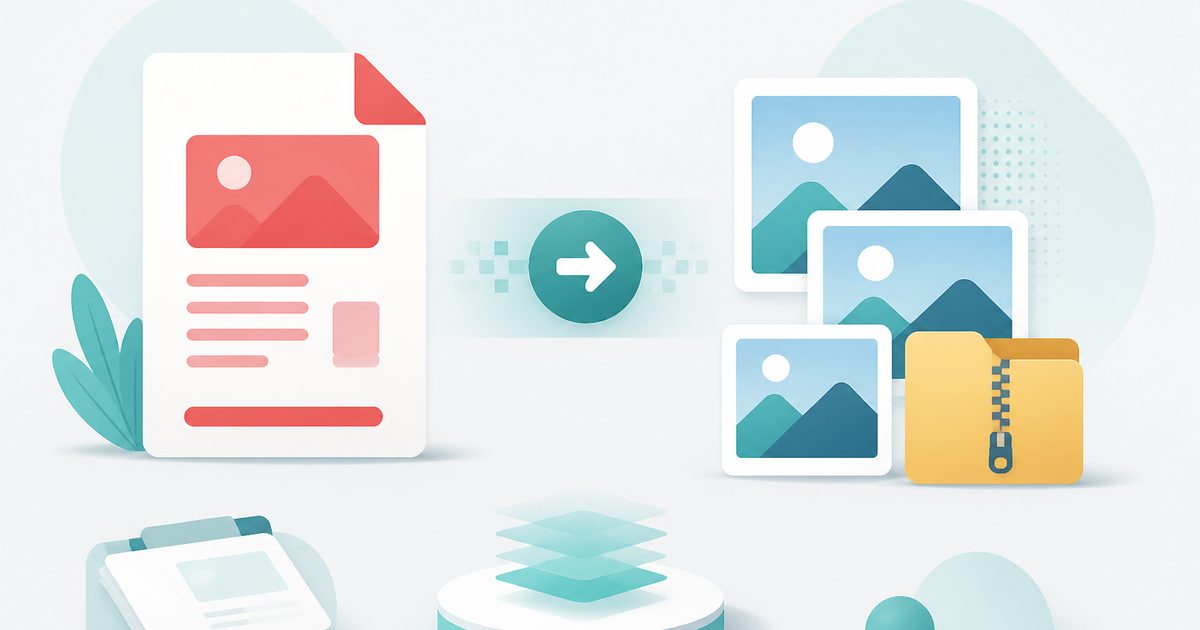
PDF to Images renders each page of a PDF into a real raster image — PNG or JPG — at whatever resolution you need, from 72 DPI for the web up to 600 DPI for print and archiving.
It uses the same rendering engine your browser uses to display PDFs, so what you export is exactly what you see on screen, including vector graphics, embedded fonts and transparency.
One page downloads as a single image; several pages are bundled into a ZIP so you get everything in one click.
What does PDF to Images do?
Precise control over resolution and output format:
- PNG for crisp text, line art and diagrams with lossless quality
- JPG with an adjustable quality slider for photo-heavy pages and small files
- DPI selector from screen resolution up to print and archival resolution
- Convert the whole document or just the page ranges you specify
- Automatic ZIP packaging for multi-page exports
- Live progress reporting so long jobs are never a black box
How to use PDF to Images
- 1Drop the PDF
The page count is read instantly so you know the size of the job ahead.
- 2Pick format and DPI
PNG at 150 DPI suits presentations and web use; JPG at 300 DPI suits printing. Narrow the page range for very long documents.
- 3Convert and download
Pages render one at a time on your device, then download as an image or a ZIP archive.
Privacy & cost
This tool runs entirely in your browser. Nothing is uploaded, logged, or saved on our servers — safe for confidential or proprietary data.
Where it fits
Drop a PDF page into a deck as a clean image rather than an awkward embedded document.
Turn the first page of a report or menu into a shareable thumbnail.
Produce fixed, non-editable renderings of pages at high DPI for records that must not change.
Why people pick this tool
- ✓Free forever — no page caps, watermarks, sign-ups or premium tier
- ✓100% in-browser processing — your documents never touch a server
- ✓Works offline once the page has loaded, ideal for confidential files
- ✓No queues or waiting rooms — the work happens at the speed of your device
FAQs
The bottom line
Rasterising a PDF is also a practical way to freeze a document: the exported images cannot be edited, re-flowed or text-mined, which is exactly what you want when circulating a final version.
More PDF conversion tools
Convert between PDF, Word, text, Markdown and images without uploading a file.
- Convert PDF to Word free, no signup
- PDF to DOCX converter
- Convert Word to PDF online
- DOCX to PDF converter
- Extract text from PDF
- PDF to plain text converter
- PDF to Markdown converter
- Combine images into one PDF
- OCR a scanned PDF to searchable text
- Convert JPG to PDF free
- PNG to PDF converter
- Convert Excel to PDF online
You might also like
More in PDF & Documents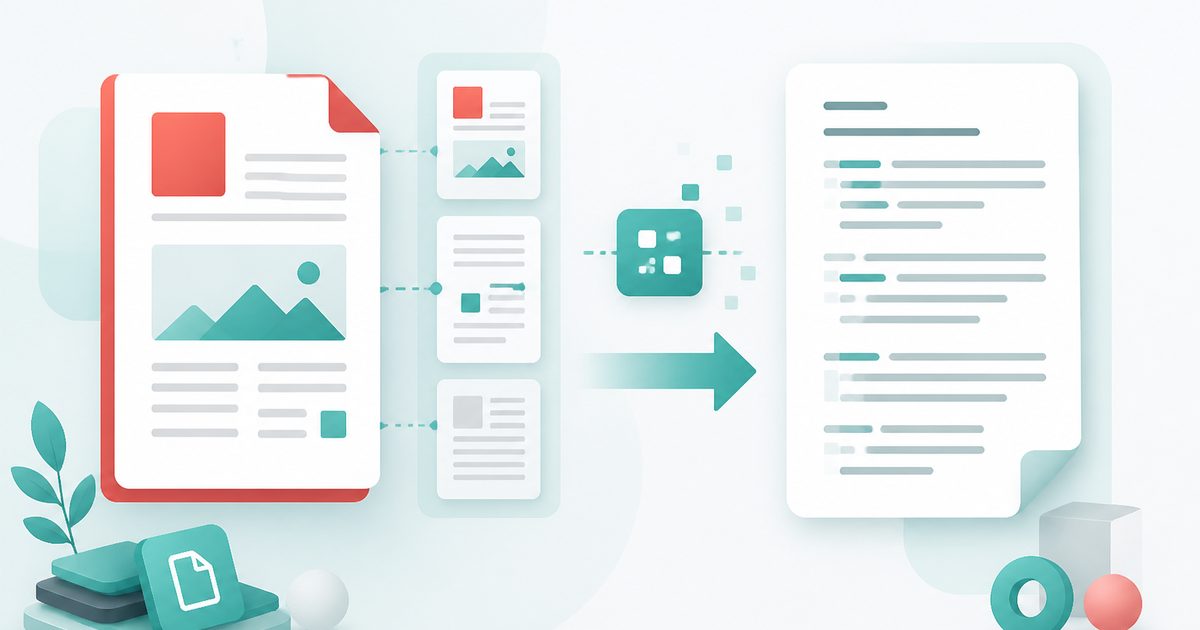
Extract Text from PDF
PDF & Documents
Pull copyable text out of any PDF, keeping line breaks and page ranges.
PDF to DOCX
PDF & Documents
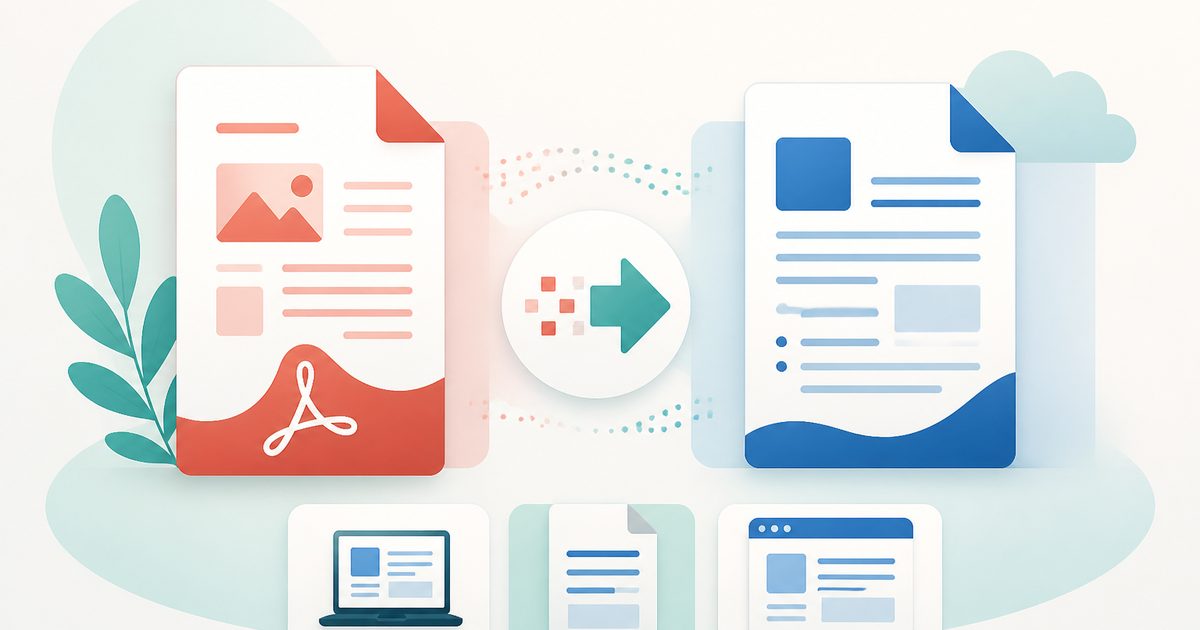
Convert PDF to an editable DOCX for Word, LibreOffice or Google Docs.
PDF to Text
PDF & Documents
Extract copyable text with layout kept, export TXT or MD.
PDF to Word
PDF & Documents
Convert a PDF into an editable .docx — headings, lists and paragraphs rebuilt.
Add Header & Footer to PDF
PDF & Documents
Titles, dates and page tokens along the top and bottom.
Add Page Numbers to PDF
PDF & Documents
Number pages, including legal-style Bates numbering.